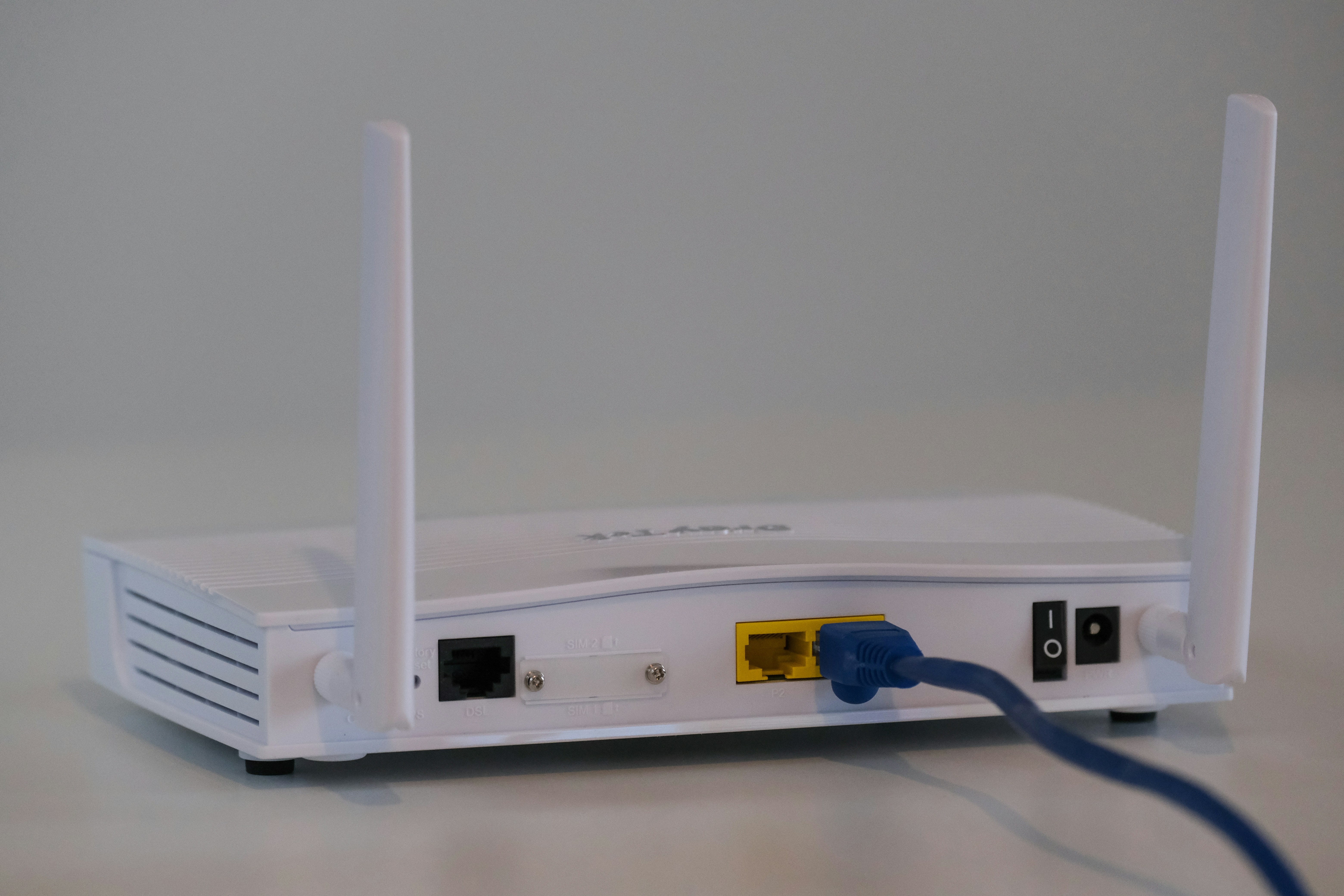
Your home Wi-Fi network is the invisible backbone of your digital life. From streaming movies and working remotely to connecting smart devices and managing personal finances, virtually everything you do online passes through it. Yet, many people overlook the critical importance of securing this gateway, leaving their digital lives vulnerable to “unauthorized access” and “cyber threats.”
This “step-by-step guide” will provide you with practical, actionable advice on “how to secure your home Wi-Fi network.” Drawing on best practices and insights, including recommendations from organizations like CISA (Cybersecurity & Infrastructure Security Agency), we’ll walk you through essential “router security” measures. By implementing these steps, you can significantly enhance your “online privacy” and ensure a truly “secure home network.”
Step 1: Change Default Router Credentials IMMEDIATELY
This is the foundational step in “router security.” Routers come with default usernames and passwords (e.g., “admin/password,” “admin/admin”). As CISA emphasizes, these defaults are widely known by attackers. Leaving them unchanged is like handing over the keys to your home.
- How to do it:
- Open a web browser on a device connected to your Wi-Fi (ideally via an Ethernet cable for initial setup).
- Type your router’s IP address into the address bar (common ones: 192.168.1.1, 192.168.0.1, 10.0.0.1). Check your router’s manual or a sticker on the device if unsure.
- Log in using the default username and password.
- Navigate to “Administration,” “Management,” “System,” or “Security” settings.
- Find the option to change the router’s administrator password.
- Create a unique, strong password (12+ characters, mixed case, numbers, symbols). This password should be different from your Wi-Fi password.
- Save changes and log out.

Step 2: Use Strong Wi-Fi Encryption (WPA2 or WPA3)
Encryption scrambles the data that travels over your Wi-Fi, making it unreadable to snoopers. Using weak or no encryption is a critical vulnerability.
- How to do it:
- Log back into your router’s admin interface.
- Go to “Wireless,” “Wi-Fi,” or “Security” settings.
- Look for “Security Mode,” “Encryption Type,” or “Authentication Method.”
- Prioritize WPA3-Personal if your router supports it. This is the strongest current standard.
- If WPA3 isn’t available, select WPA2-PSK (AES). Avoid WEP and WPA/WPA2-TKIP, as they are known to be vulnerable.
- Set a strong, unique Wi-Fi password (Pre-Shared Key or PSK). This should be a robust phrase, difficult to guess.
- Best Practice: Use a password manager to create long, unique passphrases for every single device and online account. Enable Multi-Factor Authentication (MFA) on all critical services (banking, email, social media).
- Save changes. All your devices will need to reconnect using this new password.
Step 3: Keep Your Router’s Firmware Updated
Router firmware is the operating system of your router. Manufacturers frequently release updates that patch security vulnerabilities, improve performance, and add new features. Outdated firmware is a prime target for “cyber threats.”
- How to do it:
- Log into your router’s admin interface.
- Look for “Firmware Update,” “Software Update,” “Maintenance,” or “System” settings.
- If your router supports automatic updates, enable this feature.
- Otherwise, regularly check your router manufacturer’s website for the latest firmware version. Download it and follow their specific instructions for installation. Always exercise caution during firmware updates and ensure a stable power supply.
Step 4: Create a Guest Wi-Fi Network
A “guest network” provides a separate, isolated Wi-Fi network for visitors and smart home devices (IoT devices). This is crucial for isolating potentially less secure devices from your main network, protecting your sensitive personal data.
- How to do it:
- Log into your router’s admin interface.
- Look for “Guest Network” or “Guest Wi-Fi” settings.
- Enable it and set a strong, unique password for the guest network.
- Confirm that the guest network is configured to prevent guests from accessing devices on your main network (most routers do this by default).
- Save changes.
Step 5: Disable Remote Management
Unless absolutely necessary for your specific use case, disable remote management. This feature allows you to access your router’s settings from outside your home network, which could be exploited by attackers if not properly secured.
- How to do it:
- Log into your router’s admin interface.
- Look for “Remote Management,” “Remote Access,” or “Web Access from WAN” in “Administration,” “Security,” or “Advanced Settings.”
- Ensure this option is disabled.
Step 6: Disable WPS (Wi-Fi Protected Setup)
WPS is a convenience feature allowing quick device connection via a button push or a short PIN. However, the PIN method has known vulnerabilities that can allow attackers to guess it through brute-force attacks. As CISA warns, convenience often comes at the expense of security.
- How to do it:
- Log into your router’s admin interface.
- Look for “WPS” settings in “Wireless” or “Security.”
- Disable WPS entirely if you don’t use it. If you only use the button method, it’s generally more secure than the PIN, but disabling it completely offers the best protection.
Step 7: Review Connected Devices & Logs Regularly
Periodically checking which devices are connected to your Wi-Fi network helps identify “unauthorized access.” Some routers also offer system logs that can reveal suspicious activity.
- How to do it:
- Log into your router’s admin interface.
- Look for “Connected Devices,” “DHCP Client List,” or “Wireless Clients” to see all currently active devices.
- Familiarize yourself with your devices’ MAC addresses to identify them.
- Also check “System Logs” or “Event Logs” for unusual entries.
Conclusion: Your Proactive Steps to a Secure Home Network Securing your “home Wi-Fi network” is a foundational element of your overall “cybersecurity” strategy. It doesn’t require advanced technical skills, but rather a commitment to these “step-by-step guide” recommendations. By changing default passwords, using robust “WPA3 encryption,” keeping your firmware updated, and implementing a “guest network,” you are actively building a strong defense against “unauthorized access” and protecting your “online privacy.” Take these proactive steps today to ensure your digital life remains safe and secure.





Leave a Reply