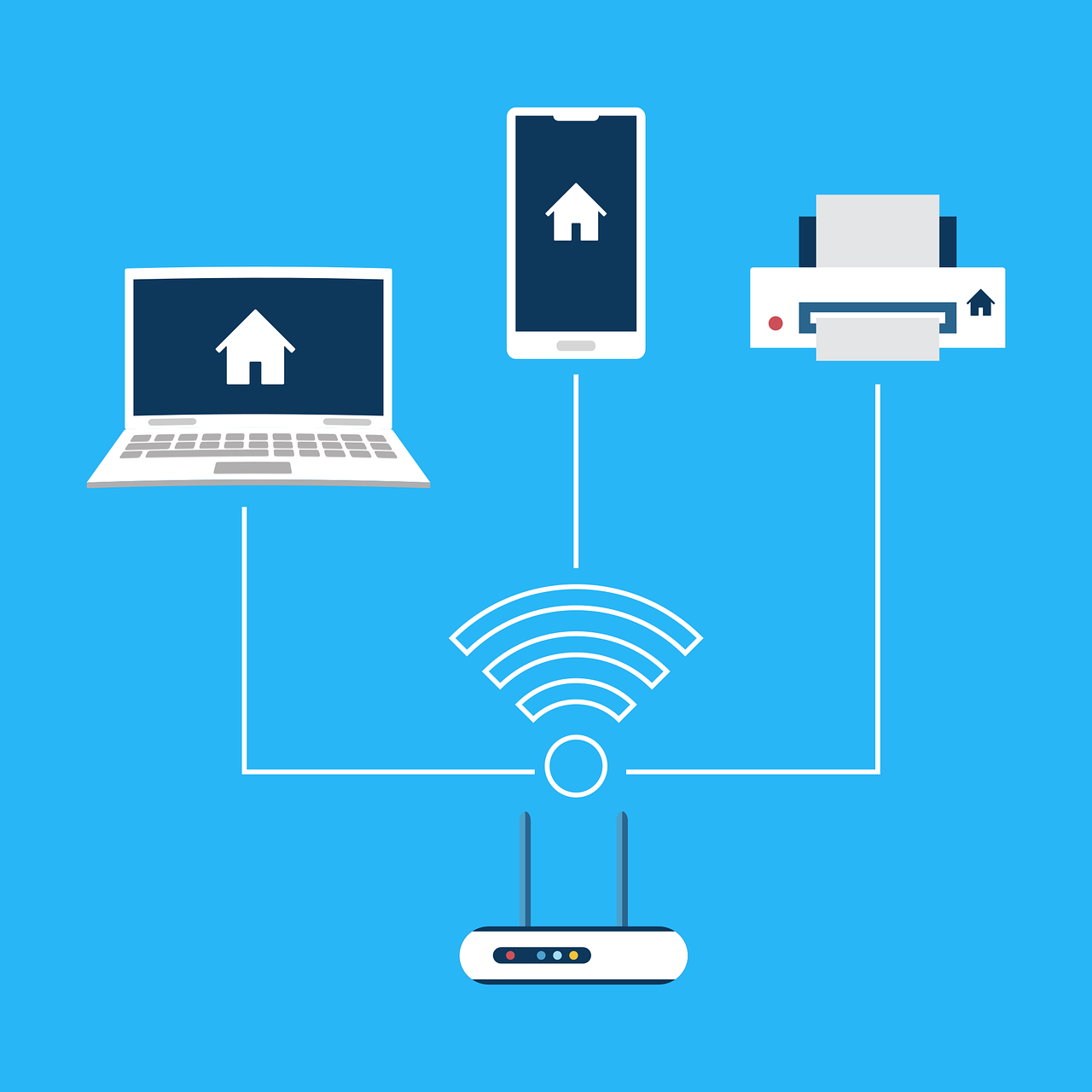
How to stay safe on public Wi-Fi
It’s tempting to hop onto the free Wi-Fi at your local coffee shop, airport, or hotel. Free internet access is convenient, but “public Wi-Fi security” is often weak, if not entirely absent. Connecting to an unsecure network can expose your sensitive information to “cyber threats,” putting your “online privacy” and “data security” at serious risk.
This “beginner’s Do’s & Don’ts Guide” will show you “how to stay safe on public Wi-Fi.” We’ll cover essential practices, including why a “VPN for public Wi-Fi” is critical, the importance of “HTTPS,” and practical steps to protect yourself, drawing insights from experts like NCSC and Executech.
Why Public Wi-Fi is Risky
Public Wi-Fi networks are inherently less secure than your home network for several key reasons:
- Lack of Encryption: Many public Wi-Fi hotspots don’t encrypt your traffic, meaning anyone on the same network with the right tools can “eavesdrop” on your data.
- “Man-in-the-Middle” Attacks: Attackers can set up fake Wi-Fi networks (e.g., “Free Airport Wi-Fi”) to trick you into connecting, then intercept all your traffic.
- Malware Distribution: Unscrupulous operators can inject malware into unencrypted websites you visit.
- Shared Network Vulnerabilities: Your device is often visible to other users on the network, potentially exposing shared files or weak services.
The Do’s of Public Wi-Fi Safety
Here’s “how to stay safe on public Wi-Fi” with essential practices you should follow:

- DO Use a Virtual Private Network (VPN):
- Why: A “VPN for public Wi-Fi” is your strongest defense. It creates an encrypted tunnel between your device and a secure server, scrambling all your internet traffic. This means even if someone intercepts your data on public Wi-Fi, they can’t read it. As Executech notes, a VPN is “essential for protecting your data.”
- How: Subscribe to a reputable VPN service (e.g., NordVPN, ExpressVPN, Surfshark) and activate it before connecting to public Wi-Fi.
- DO Ensure Websites Use HTTPS:
- Why: HTTPS (Hypertext Transfer Protocol Secure) encrypts the connection between your browser and the website you’re visiting. Look for a padlock icon in your browser’s address bar. This adds another layer of encryption for specific websites, even if the Wi-Fi network itself isn’t secure.
- How: Always check for the padlock or tune icon (chrome browsers) and “https://” in the URL. Many modern browsers will warn you if a site isn’t secure.
- DO Keep Your Software Updated:
- Why: Operating systems, web browsers, and apps frequently release security updates that patch vulnerabilities. Using outdated software can leave you exposed.
- How: Enable automatic updates on all your devices.
- DO Use Strong, Unique Passwords & 2FA:
- Why: Even if an attacker briefly intercepts an unencrypted password, strong passwords and Two-Factor Authentication (2FA) provide crucial layers of defense, making accounts much harder to compromise.
- How: Use a password manager to generate and store strong passwords, and enable 2FA on all important accounts.
- DO Disconnect When Not in Use:
- Why: The less time you’re connected to an unsecured network, the lower your risk.
- How: Disconnect from public Wi-Fi as soon as you’re done using it.
The Don’ts of Public Wi-Fi Safety
Here are things you should NOT do when connected to public Wi-Fi:

- DON’T Conduct Sensitive Transactions Without a VPN:
- Why: Avoid online banking, shopping, logging into work accounts, or accessing any service with sensitive personal information if you’re not using a VPN. As WATECH advises, assume “there is no privacy or security” on public networks.
- Instead: Wait until you’re on a secure network or use your mobile data connection.
- DON’T Connect to Unknown or Unsecured Networks:
- Why: Be wary of networks with generic names or those that don’t require a password. They could be fake hotspots set up by attackers.
- Instead: Verify the network name with staff (e.g., at the cafe counter). Choose networks secured with WPA2 or WPA3 encryption.
- DON’T Allow Automatic Wi-Fi Connections:
- Why: Your device might automatically connect to any known or open network, potentially without your knowledge.
- Instead: Disable “auto-join” or “connect automatically” for Wi-Fi networks in your device’s settings.
- DON’T Enable File Sharing:
- Why: File sharing features make your device visible and accessible to other devices on the same network. This is a huge “data security” risk on public Wi-Fi.
- Instead: Ensure file sharing is disabled in your operating system settings.
- DON’T Download or Update Software:
- Why: Public Wi-Fi is not the place for software updates or downloads, as they can be intercepted or manipulated to install malicious software.
- Instead: Perform updates and downloads on a trusted, secure network.
- DON’T Ignore Security Warnings:
- Why: Your browser or operating system might display warnings about unsecure websites or certificates. These are critical alerts!
- Instead: Pay attention to these warnings and avoid proceeding if a site is flagged as insecure.
Conclusion: Be Smart, Stay Safe on Public Wi-Fi
Connecting to “public Wi-Fi” offers convenience, but it demands caution. By understanding these “beginner’s Do’s and Don’ts Guide” and implementing simple yet powerful tools like a “VPN for public Wi-Fi” and always verifying “HTTPS,” you can significantly enhance your “online privacy” and “data security.” Don’t let the convenience of free Wi-Fi come at the cost of your digital safety. Be smart, be vigilant, and protect your digital life wherever you connect.







Leave a Reply